Using Meinberg NTP with MAPPS

08 Feb 2023

Using Meinberg NTP on Windows with MAPPS data acquisition

#Meinberg NTP

MAPPS synchronizes multiple data streams using timestamps. It's important to minimize time offsets when synchronizing data streamed from different PCs. One way to minimize differences is to use Meinberg NTP. Meinberg Global provides a Meinberg NTP installer on their software download page.
#NTP Server Install

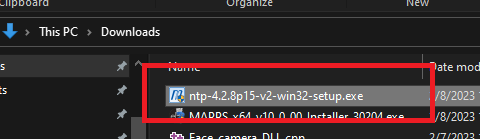
  1. Download the installer from Meinberg Global and run the installer by double clicking on it. image
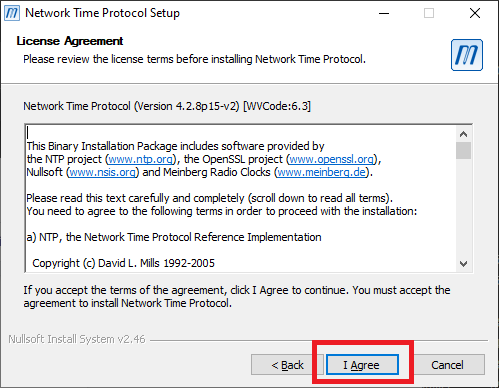
  2. Agree to the license image
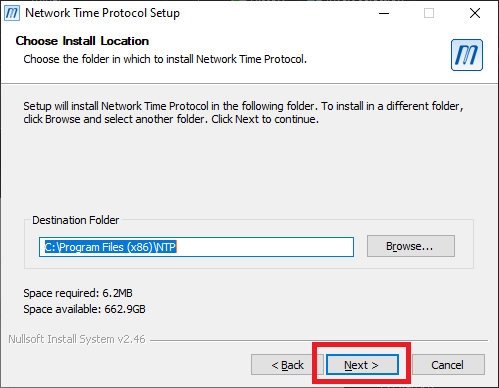
  3. Use the default Destination folder and press “Next” image
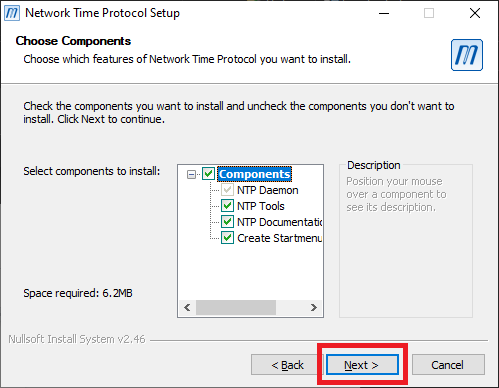
  4. Use the default components and press “Next". The installer will start installing Meinberg NTP. This may take a few minutes. image
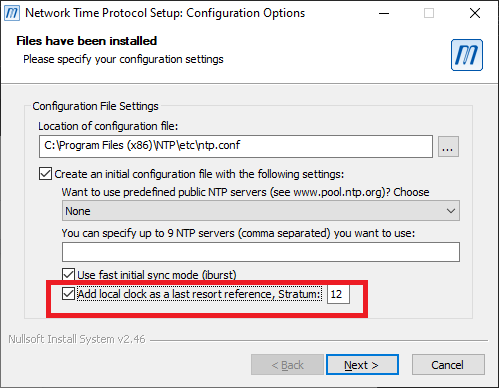
  5. After the files have been installed, the installer will ask you to configure your server. Make sure to check the “Add local clock as a last resort reference, Stratum [12]” checkbox.
    image
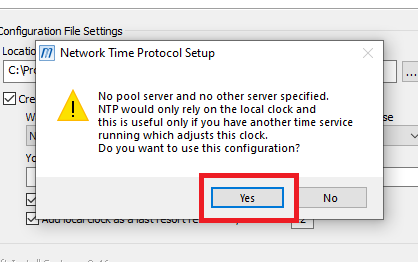
  6. Press "Yes" when asked to use the configuration. image
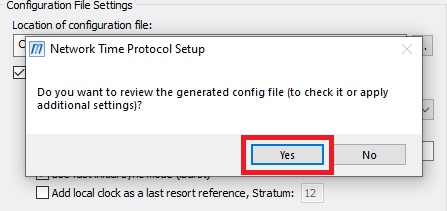
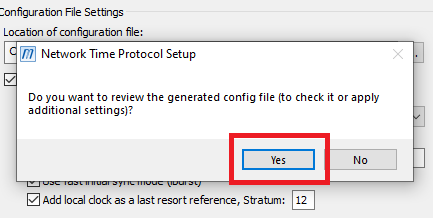
  7. Press “Yes” when asked to review the generated config file. (config files are located in C:\Program Files (x86)\NTP\etc ) image
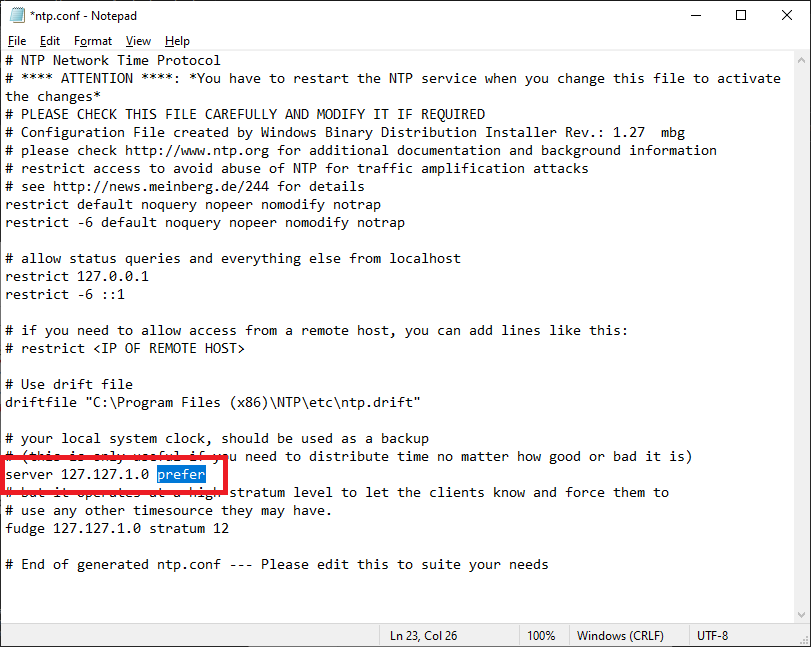
  8. Add “prefer” to the “server 127.127.1.0” line in the config file and save the configuration file. image
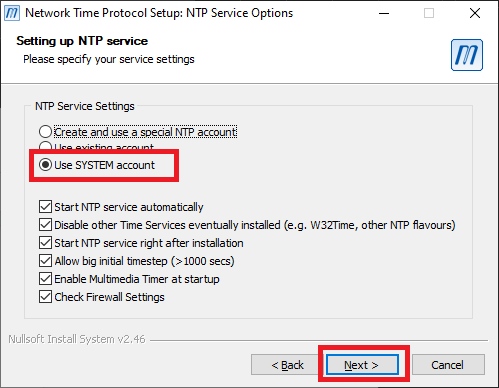
  9. Use the default checkboxes for the service settings and select "Use the SYSTEM account". Press “Next” image
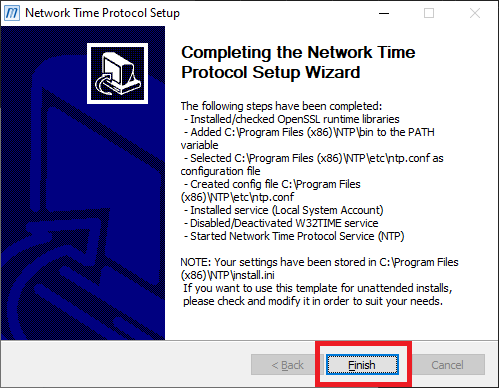
  10. Press “Finish” to close the installer image

#NTP Client

  1. Download the installer from Meinberg Global and run the installer by double clicking on it. image

  2. Agree to the license by pressing "I Agree" image

  3. Use the default Destination folder and press “Next” image

  4. Use the default components and press “Next” image

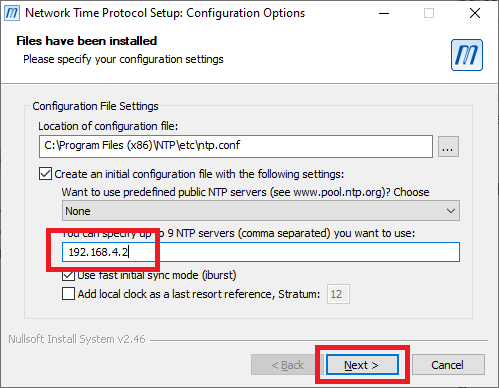
  5. Enter the IP address of the NTP server PC and press “Next” image
  6. Press “Yes” to view the config file. image

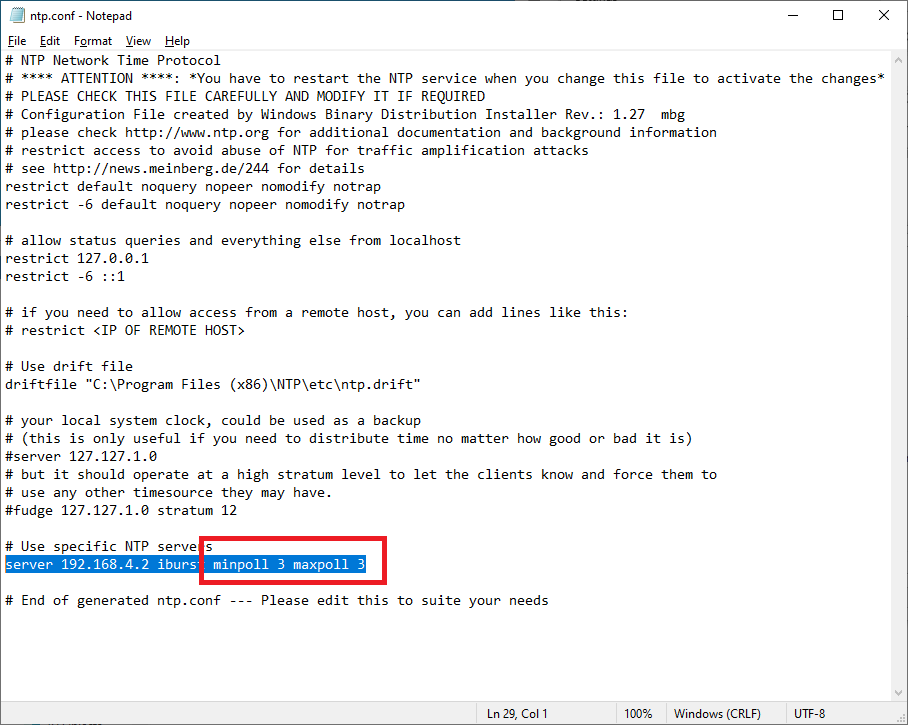
  7. Set the minpoll and maxpoll values in your config file to 3 image
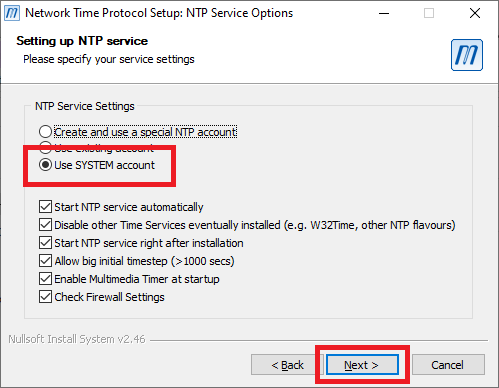
  8. Use the default checkboxes for the service settings and select "Use the SYSTEM account". Press “Next” image
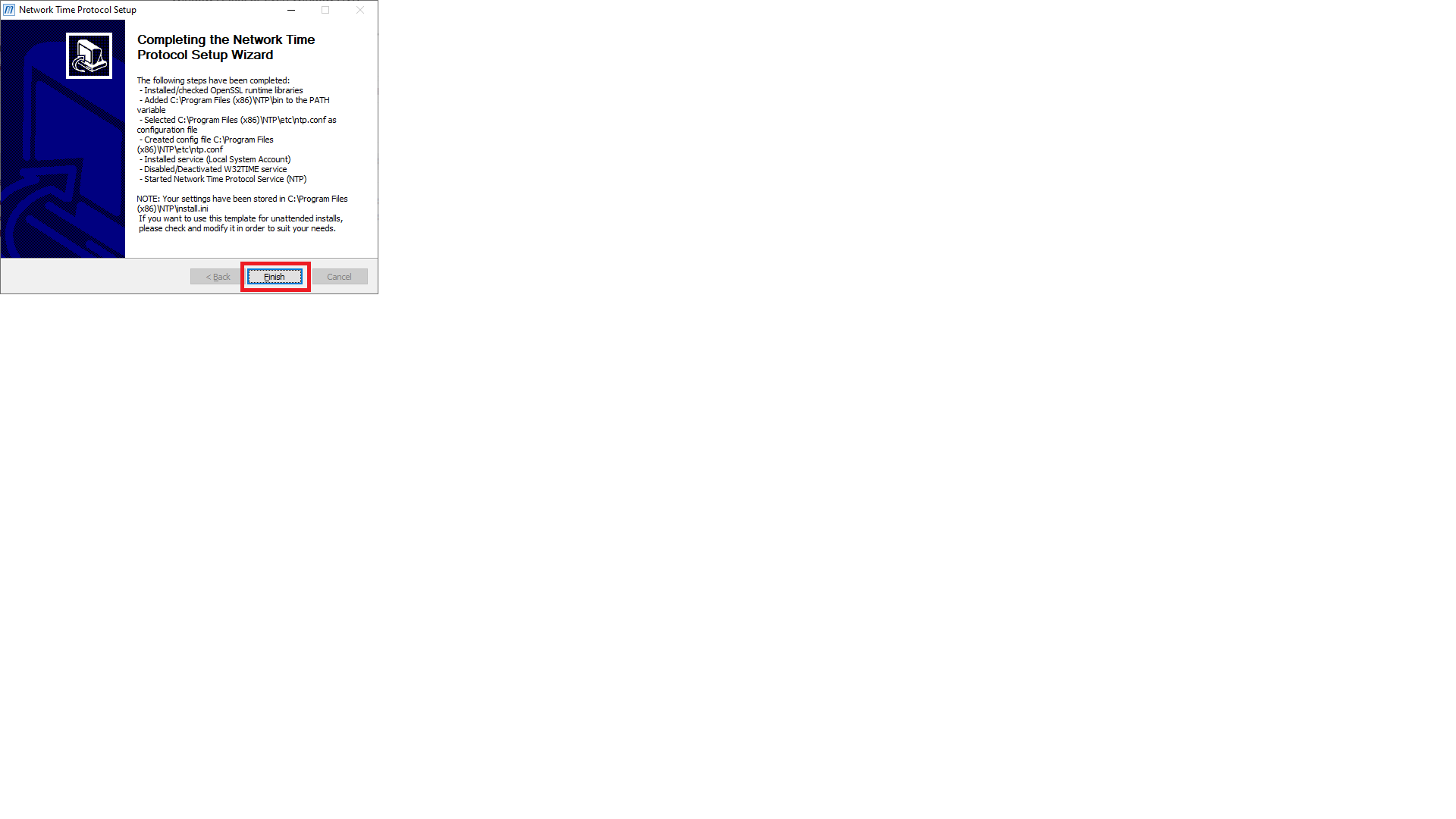
  9. Press “Finish” to finish the installation image
#Check the Client Connection to the Server.

To check the connection to your windows server
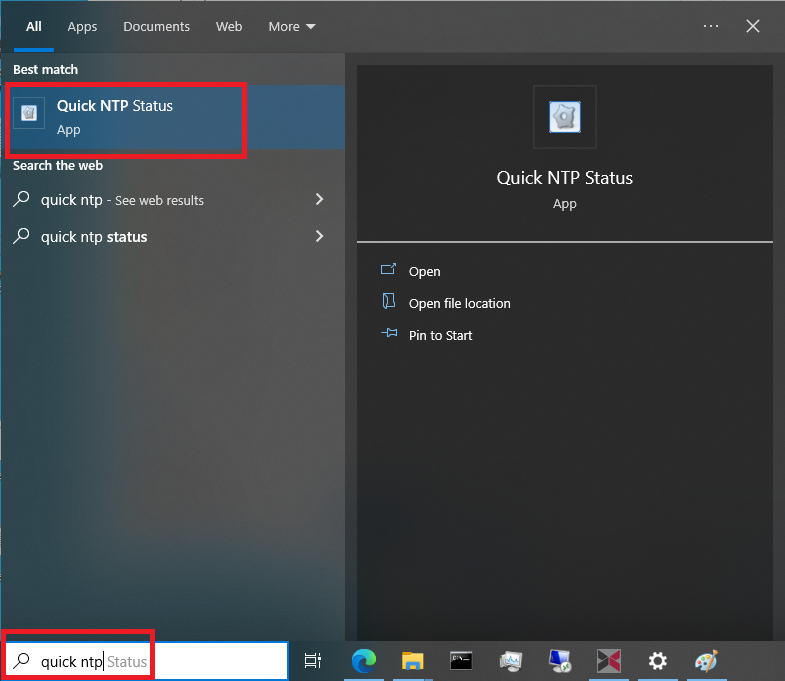
  1. Type 'quick ntp' in the Windows Search text box and run the 'Quick NTP Status' app. image
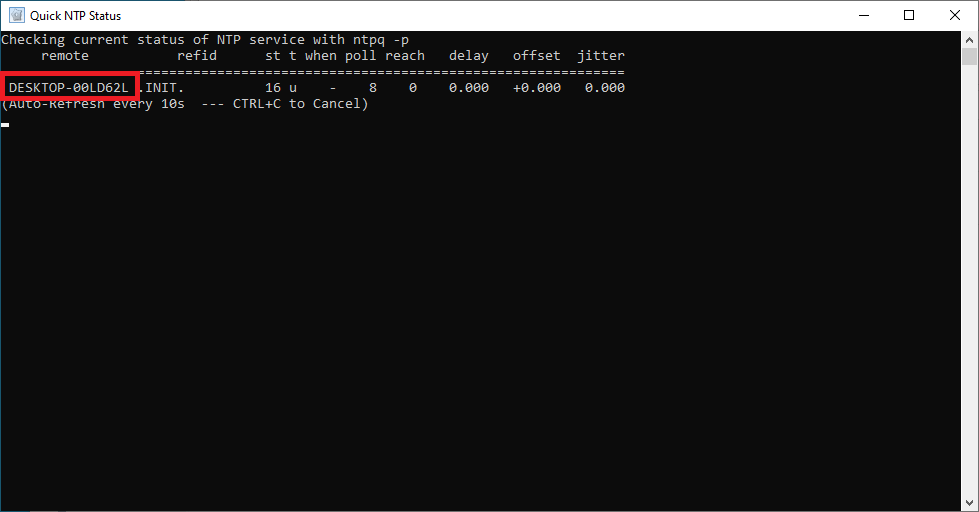
  2. Check for the name of the server PC in the "Quick NTP Status" window. image